


Good photos make your blog posts and social media stand out, but you don’t need Photoshop, or a big budget, to get there. There are plenty of easy, mostly-free apps that handle everything from quick edits to polished graphics, and many of them work right on your phone. I’ve tried a lot of them over the years, and below I’m sharing my favorites along with what each one is best for, so you can pick the right fit for the way you work.

What to look for in a photo editing app
Before you pick a tool, it helps to know what actually matters to you. If you’re a beginner, you probably want a clean, friendly interface and simple edits you can make in a couple of taps. If you’re more of a photographer, you may want adjustment sliders for exposure, contrast, and color, plus more advanced tools for fine-tuning. Think about where you’ll be editing, too: a desktop gives you room to work, while an iPhone or tablet is perfect for editing on the go. Then consider what you actually need day to day, whether that’s filters for a consistent look, collages, object removal, or AI tools to speed things up. It’s also worth thinking about your budget, since most of these apps are free to start but charge for their most powerful features. You don’t need a single app that does everything; most creators happily mix two or three.
The best photo editing apps for bloggers

Canva — best all-around for graphics
Canva is my go-to for anything graphic. It’s free to start, with a Pro plan at about $15 a month (or roughly $10 a month if you pay annually). The free version alone gives you thousands of templates for blog graphics, headers, Pinterest pins, social posts, collages, and even ads, so it’s perfect for beginners who want something that looks designed without the work. Pro adds handy AI tools like Background Remover and Magic Eraser for one-tap object removal, plus a bigger library of stock photos and the option to upload your own fonts.
It’s also the easiest place to stay on-brand, since you can save your colors, fonts, and logo in one spot and reuse them everywhere. I have a different brand kit for each of my sites so it makes it easy to stay consistent with fonts and colors. It works on desktop, phone, and tablet, and everything syncs, so you can start a design on your laptop and finish it on your phone.
Adobe Lightroom (Desktop or Mobile) — best for photographers
If you care about your photos themselves, Adobe Lightroom’s mobile app is worth a look. It has a genuinely useful free tier with professional-grade adjustment sliders for exposure, contrast, highlights, and color, plus presets that let you save and reuse your editing style across every shot. It handles raw files straight from your camera (including DNG photos you take right in the app), and it syncs across your phone, tablet, and desktop. If you shoot a lot of similar photos, you can copy your edits from one and paste them onto the rest, which is a huge time-saver. This is what I use for all of my food photos on I Heart Vegetables.
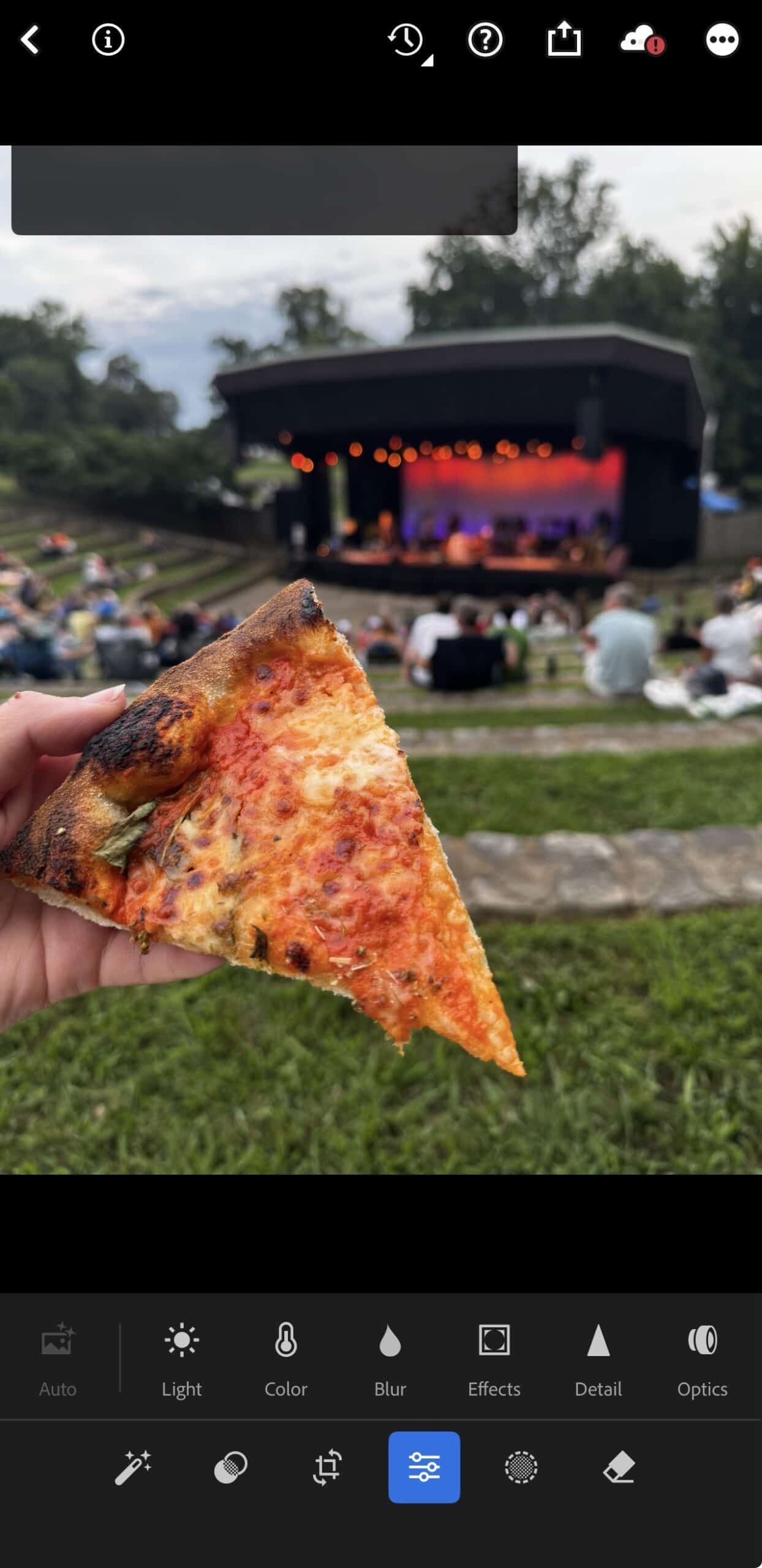
I also have the app on my phone which is great if I want to make some quick edits to photos I took on my phone. It’s a favorite among photographers and anyone editing portraits or photo-heavy posts, and while it has a slight learning curve, there are plenty of free tutorials to get you started.
Snapseed — best free mobile editor
Made by Google, Snapseed is completely free, with no ads, on both iPhone and Android. It strikes a great balance between simple and powerful: you can make quick edits in seconds, or use selective adjustments and precise tools to fine-tune a single part of a photo. It’s beginner-friendly but still capable enough that experienced editors keep it on their phones. The one gap is AI, it doesn’t do automatic object or background removal, so you’ll want to pair it with another app if that’s important to you.
Shutterstock Create (formerly PicMonkey)
PicMonkey was a longtime blogger favorite for quick touch-ups and collages, and it’s still around, just under a new home. Shutterstock acquired PicMonkey, and its photo editing, text, touch-up, and collage tools now live inside Shutterstock’s Create platform. If you loved PicMonkey for lightening a photo, cropping, adding text, or making a simple Pinterest collage, that’s where you’ll find those features today.
Picsart — best for AI edits
If AI tools are what you’re after, Picsart is built for it. It offers one-tap background removal and object removal, plus generative effects and filters, on both desktop and mobile. The free version is ad-supported and covers a lot of ground, while a paid subscription unlocks the full toolkit. It’s a fun option when you want to remove a photobomber or create something a little more eye-catching without much effort.
Free or paid: do you need to upgrade?
One of the best things about this list is how much you can do for free. Canva, Snapseed, Lightroom mobile, VSCO, and Picsart all have genuinely useful free tiers, so you can build a complete editing workflow without spending a dollar. So when is it worth paying? Upgrading usually makes sense once you find yourself hitting the same wall over and over, maybe you want Canva’s Background Remover and Magic Eraser every week or Lightroom’s more advanced tools. A few of the free apps are ad-supported, and a paid plan often removes the ads along with unlocking features. My advice: start free, get comfortable, and only upgrade the one or two apps you reach for the most.
Editing on your phone vs. your desktop
A lot of creators wonder whether they should edit on their phone or their computer, and the honest answer is that both have a place. Editing on an iPhone or tablet is fast and convenient, perfect for quick edits and posting on the go, and apps like Snapseed, VSCO, and Lightroom mobile are built for it. A desktop, on the other hand, gives you a bigger screen and more room for detailed work, which is nice when you’re designing a complex graphic in Canva or fine-tuning a batch of photos. Many tools, like Canva and Lightroom, sync across devices, so you can move between your phone, tablet, and desktop without losing your place.
Tips for a faster editing workflow
Once you’ve picked your tools, a few small habits make editing much faster. Settle on one editing style so your blog and feed look cohesive, then save your favorite filters or adjustment-slider settings as presets so you can batch your simple edits instead of starting over each time. Keep your most-used app on your phone’s home screen for quick edits, and lean on free YouTube tutorials whenever you want to learn an app’s more advanced tools. The goal is to spend less time fiddling with settings and more time on the creative, fun part of making something.
Which one should you choose?
With so many options, it comes down to what you’re making. If you’re a beginner who mostly needs graphics, start with Canva, it has the gentlest learning curve and the most versatility. If you’re a photographer who cares about exposure and color on your portraits and camera shots, Lightroom mobile is worth the effort. For fast, free edits right on your phone, Snapseed is hard to beat, and if you love a particular aesthetic, VSCO’s filters will keep your editing style consistent. And when you need AI tools like object removal, reach for Canva Pro or Picsart. Most creators end up using two or three together, one for graphics and one or two for photos.
At the end of the day, the best photo editing app is the one you’ll actually use, so start with whatever fits how you work and add more as you grow. What are your favorite photo editing tools? Let me know in the comments below!



Love Canva! Never heard of Snap Seed, so I’m definitely going to check it out!
Awesome website and awesome blog post! Another great tool for online graphic creation would be Snappa.com! If you wanted to try us out, I’d be happy to help set you up with a pro plan to try!