


If you’ve been blogging for more than a few months, you may have broken links hiding on your site. The good news? This is one of the most common blog maintenance issues, and one of the easiest to fix. Let’s walk through what broken links are, why they matter, and exactly how to find and fix them.
What are broken links?
A broken link is a URL that no longer leads to an active page. The link is still clickable, but instead of taking your reader where they expect to go, it lands on an error, usually a “missing page” or 404 message. That dead destination can live on your own domain (an internal link) or on someone else’s site (an external link). Either way, when a visitor clicks and hits a dead end, it’s a frustrating experience.
What causes broken links?
Broken links happen for all kinds of reasons. Maybe you linked to another site that has since shut down or moved its content. Maybe you changed the URL of one of your own posts and forgot to set up a redirect. And if your blog lets readers drop a URL in the comments, those can quietly pile up into a lot of dead links. None of it means you did anything wrong, it’s just part of running a site that grows and changes.
Why broken links matter for your blog
It’s tempting to ignore a few dead links, but they add up. For your readers, broken links create a poor user experience, nothing makes a visitor lose trust faster than clicking a link that goes nowhere. For your SEO, they can quietly hurt your rankings. Search engine crawlers (the bots from Google and others that scan your site) follow your links to understand your content, and when they keep hitting missing pages, it signals your site may not be well maintained. Broken internal links are especially worth fixing, because they point back to your own site and are completely in your control. Healthy links help both your visitors and your search rankings.
How do you find broken links?
There are a few good ways to track down broken links, and you can mix and match them. Here are three I’d start with.
Method 1: The Broken Link Checker plugin
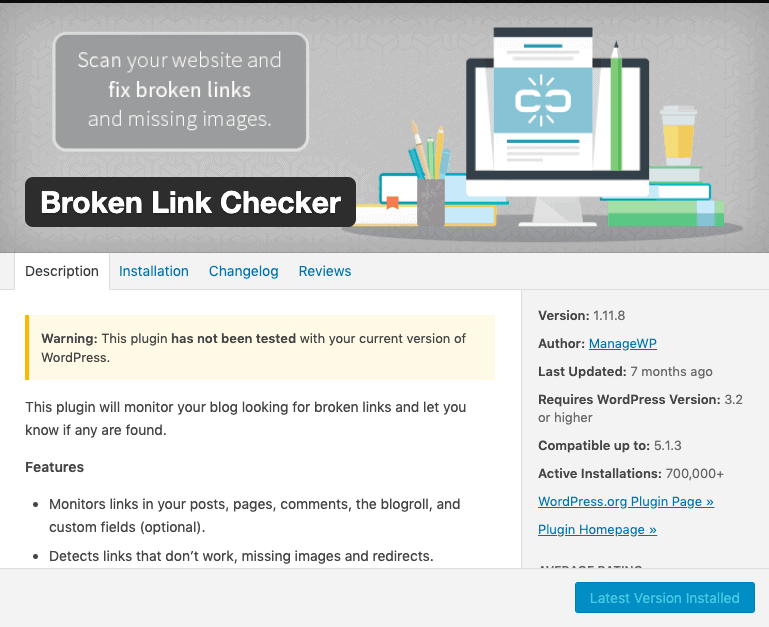
If you’re on WordPress, a plugin is the simplest place to start. Broken Link Checker is a free, long-running favorite installed on millions of sites. These days it offers two ways to scan, a fast cloud-based engine that runs on its own servers, or a local option that runs on yours, and you can switch between them. It checks your posts, pages, and comments, then gives you one dashboard to fix everything it finds.
When I first ran this plugin, I had hundreds of broken links on my site, mostly from old blog comments. I bulk-selected them and unlinked them, so the comment text stayed but the dead links were removed. Now I check regularly to catch new ones.
Here’s an example from my own dashboard:

I found a couple of URLs that weren’t working anymore, and it was easy to click through to see where each problem was. The first just needed an updated URL, and the second was from an old post I’d deleted. It only took a minute or two to fix both.
Prefer not to add a plugin that scans on your own server? Broken Link Checker by AIOSEO is a cloud-based alternative that checks a few hundred internal links a month on a free account, so the work happens on their servers instead of slowing down your site.
Method 2: Google Search Console (free)
Google Search Console is a free tool from Google, and if you haven’t set it up, it’s worth doing. To find broken links, open the Pages report under Indexing and look under “Not indexed” for “Not found (404),” Google’s list of pages it tried to reach but couldn’t. You can also go to Settings > Crawl stats > By response and click “Not found (404)” to see which missing pages Google’s crawlers hit most. Since it comes straight from Google, it’s a great way to catch the broken links that actually affect your search visibility.
Method 3: Ahrefs free tools
Ahrefs makes a free broken link checker you can use right in your browser, with no account or download required, to scan for dead internal and external links. For a deeper look at your own blog, create a free Ahrefs Webmaster Tools account, which gives you 5,000 crawl credits per month per verified site and lets its crawler comb through your whole domain. When the scan finishes, you can download the full list as a CSV (or Excel) file, handy if you want to work through them in a spreadsheet or hand them to someone else. It’s a quick way to get a full picture of your link health without paying for a subscription.
How to fix a broken link once you’ve found it
Once you know where a link is broken, you have three easy options. If the page just moved, update the link to the correct URL. If it’s one of your own posts that changed addresses, set up a redirect so anyone (and any crawler) visiting the old URL lands in the right place. And if the page is gone for good, simply remove or unlink it. The goal is always the same: make sure no one clicks a link that leads to a missing page.
How often should you check for broken links?
There’s no magic number, but at a minimum, check once a quarter. If you publish often or link out a lot, monthly is even better. It’s also smart to run a quick scan any time you’ve done something big, like migrating to a new host, redesigning your site, or deleting a batch of old posts, since those are the moments broken links tend to appear. Putting it on a recurring schedule, the same way you’d back up your site, means broken links never pile up the way mine did.
Fixing or removing broken links is one of the simplest ways to improve your blog’s SEO and keep your readers happy, so it’s worth doing regularly. If you have questions, leave them in the comments below!



Nice tools and I got a broken link that was due to a typo from me. I personally use a WordPress plugin called Broken Link Checker. Might have missed getting this link reported. Otherwise, I get an email from the above plugin regularly. It checked for broken links every 72 hours and emails me if any links are broken. I think once an year is too long to check for broken links.